You click the Wi-Fi icon expecting to see your usual connection strength, and instead you’re staring at that infuriating yellow triangle. Your device insists it’s connected, but the internet? Nowhere to be found.
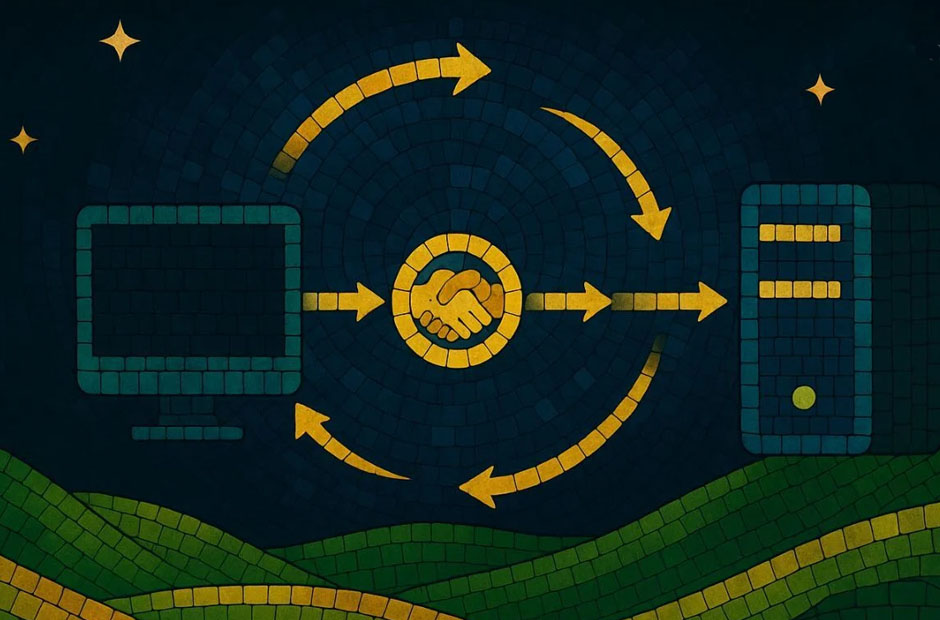
What most people don’t realize is that your device isn’t lying to you. It really is connected—just not to what matters. Before that “connected without internet” message shows up on your screen, three specific network handshakes have already happened behind the scenes. And at least one of them has failed spectacularly.
The First Handshake: Your Device Meets the Router
This is the easiest relationship to establish, and honestly, it’s the one that tricks most people into thinking everything’s fine.
When your laptop, phone, or tablet connects to your router, it’s completing what’s called a Layer 2 connection. Your device gets an IP address from the router’s DHCP server, they exchange some pleasantries, and boom—you’ve got those Wi-Fi bars lit up like a Christmas tree.
Here’s the thing though: this handshake only proves your device can talk to the router. It says absolutely nothing about whether that router can talk to anything beyond your building’s walls.
What Goes Wrong Here
Most of the time, this first handshake works fine. When it doesn’t, you won’t even see a “connected without internet” message—you’ll see “no internet connection” or nothing at all.
But occasionally, your device will grab an IP address that’s already in use on the network, or the router’s DHCP server will have a moment of confusion and hand out invalid network parameters. You’ll show as connected, but you’re connected to chaos.
The Second Handshake: Your Router Reaches the Gateway
This is where things get interesting, and it’s often where the “connected without internet” problem actually lives.
Your router needs to communicate with your ISP’s gateway—that’s the next hop that actually connects you to the broader internet. This handshake involves your router proving it’s authorized to use the connection, the gateway acknowledging it, and both agreeing on how to pass traffic back and forth.
When this fails, your device has no idea. From your laptop’s perspective, it successfully connected to the router and everything looks great. The router gave it an IP address, they’re exchanging data, and all the local networking protocols are humming along just fine.
The Authentication Dance
Your router and the ISP gateway need to agree on a few critical things:
- Authentication credentials – Usually handled automatically, but if your ISP recently changed something on their end or your router lost its configuration, this can fail silently
- WAN IP assignment – Your router needs to get a public IP address from the ISP, and if the ISP’s DHCP server is having a bad day, this can time out
- Default route configuration – Even if everything else works, if your router doesn’t know where to send traffic destined for the internet, you’re dead in the water
The sneaky part? All of these failures look identical to your device. It just knows the router isn’t passing traffic to the internet, so it throws up that connected without internet warning.
The Third Handshake: DNS Resolution
Let’s say your router actually did establish a connection to the ISP gateway successfully. There’s still one more handshake that needs to happen before you can browse Reddit at work (not that anyone does that).
Your device needs to resolve domain names into IP addresses, and that requires talking to a DNS server. Usually, your ISP provides DNS servers automatically, but if those servers are unreachable, misconfigured, or just having an outage, you’ll get that connected without internet message even though technically, you DO have internet access.
The DNS Paradox
This one frustrates IT people because it creates a weird situation where you can:
- Successfully ping IP addresses directly
- Have a completely valid internet connection at the network level
- Still see “connected without internet” warnings on every device
Why? Because most devices test internet connectivity by trying to reach specific domains like www.msftconnecttest.com or clients3.google.com. If DNS isn’t working, those tests fail, and your device assumes the whole internet is down.
What Actually Fixes Connected Without Internet Problems
Now that you know which handshakes are failing, here’s the frustrating truth: most of the quick fixes you’ll find online only work by accident.
Restarting your router might help if the second handshake failed due to a temporary ISP issue. Forgetting and reconnecting to your Wi-Fi might help if the first handshake assigned you a bad IP address. Changing your DNS servers to Google’s 8.8.8.8 might help if the third handshake is where things fell apart.
But unless you know which handshake failed, you’re essentially trying random solutions and hoping one sticks.
The more reliable approach? Check each handshake systematically:
- Verify the first handshake – Make sure your device actually has a valid IP address in your network’s range (not something like 169.254.x.x, which means DHCP failed)
- Test the second handshake – Try pinging your router’s gateway address or an external IP like 8.8.8.8 to see if traffic is actually leaving your network
- Confirm the third handshake – Run an nslookup command for a common domain to see if DNS is resolving properly
When It’s Not Actually a Handshake Problem
Sometimes you’ll see connected without internet messages even when all three handshakes completed successfully. This usually means:
- Your ISP is having an outage (the handshakes worked, but there’s nowhere for traffic to go after the gateway)
- Your router’s firewall is blocking the connectivity tests your device runs
- The internet connection is so slow that requests are timing out before completing
- Someone forgot to pay the internet bill (happens more often than you’d think in small businesses)
The connected without internet message is basically your device’s way of saying “I did my job, but somewhere between here and Google, something’s broken.” Understanding which of those three handshakes failed gets you a lot closer to figuring out what that something actually is.