What Makes a Monitor “Flexible” Today?
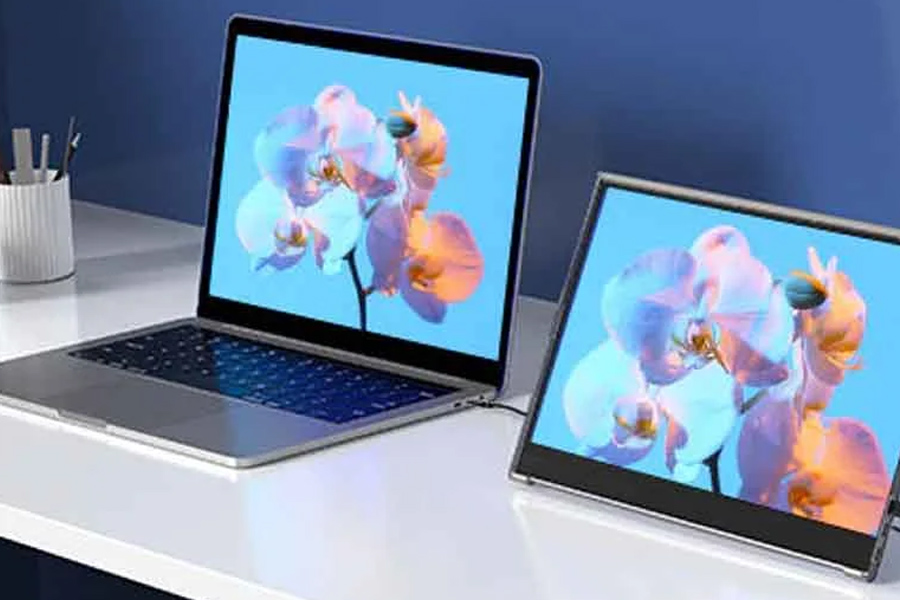
A flexible monitor is adaptable, not just bendable. Imagine slim, lightweight displays that connect to computers, tablets, and phones that can tilt, swivel, or prop up at practically any angle, sometimes with touch. Most use a single connection for power and video, making them portable and doubling screen space in seconds.
These portable displays typically range from 13 to 16 inches with 1080p or higher resolution, use USB-C or HDMI for connectivity, and can slip into a backpack without a second thought. For mobile work, that’s the difference between squinting at tabs and breezing through tasks with a true side-by-side setup.
Step-by-Step: Assemble Your Mobile Workstation Anywhere
- Step 1: Pick the spot
Choose a flat, stable surface—desk, coworking table, café bar, train tray. Clear clutter, and avoid wobbly or uneven treads that shake your gear. - Step 2: Connect the flexible display
Plug in via USB-C (DisplayPort Alt Mode) or HDMI. Many portable monitors power from the same USB-C cable that carries video; otherwise, use a small USB-C charger or power bank. Some models support wireless casting, but wired is smoother and more power-efficient on the go. - Step 3: Arrange your devices
Place your laptop centered with the flexible screen to the side (landscape for spreadsheets, portrait for reading code or documents). Adjust tilt and height so the top of each screen sits near eye level; if needed, stack the portable monitor on its foldable cover or a slim stand. - Step 4: Organize accessories
Keep a compact keyboard and mouse up front for better ergonomics. Stash headphones within reach. Tame the cable spaghetti with short cords and a couple of clips or a reusable tie. - Step 5: Tweak display settings
In your laptop settings, choose Extend for extra workspace or Duplicate if you’re presenting. Set the flexible monitor as left or right so your mouse moves naturally, and fine-tune resolution, scaling, and brightness to reduce eye strain. - Step 6: Optimize comfort
Sit tall, relax your shoulders, and align wrists neutral over the keyboard. Take short breaks every hour to rest your eyes and reset posture. If you’re in a bright spot, tilt the monitor to dodge glare.
Why a Flexible Monitor Changes the Way You Work
A mobile dual-screen setup feels like a superpower in a compact kit. You can write on one screen while referencing the other, track timelines alongside emails, or join calls with notes open and ready. Designers can preview edits while checking references, students can watch lectures while taking notes, and freelancers can run their full workflow from a hotel desk or a café corner. It’s freedom from the single-screen squeeze—without lugging a full desktop.
Must-Have Components for a Mobile Workstation
- Laptop or tablet
Your main engine should be light but capable: at least 8GB RAM for smooth multitasking, solid battery life, and a bright screen. A tablet with a detachable keyboard is great if you prioritize portability; just confirm it supports video output (USB-C with DisplayPort Alt Mode or a specific adapter). - Flexible (Portable) Monitor
Aim for 13–16 inches at 1080p or higher for crisp text and UI. Look for USB-C with power delivery pass-through if you want to charge your laptop from one outlet, and consider touch if you sketch or annotate. Portrait rotation is a secret weapon for coders, editors, and researchers. - Keyboard and mouse
A low-profile, wireless keyboard reduces wrist strain during long sessions. A compact mouse sized to your hand improves precision and comfort; rechargeable models cut down on disposable batteries and pack easily. - Headphones
Noise-canceling headphones turn a noisy café into a focus zone and make calls clearer. For long stretches, choose a comfortable, lightweight pair with cushioned ear pads. - Power bank or compact charger
A 20,000mAh power bank with fast USB-C output can keep a monitor and laptop going between outlets. If you prefer wall power, a small GaN charger with dual USB-C ports is a tidy, travel-friendly option. - Cables and small organizers
Pack a short USB-C to USB-C, a USB-C to HDMI (or micro-HDMI if your monitor uses it), and one USB-A to USB-C cable. A slim pouch keeps adapters, dongles, and SD readers easy to find.
Choosing a Flexible Monitor: A Look at UPERFECT
- Wide range with smart features
UPERFECT offers models across resolutions—1080p, 1440p (2K), up to 4K—and even gaming-forward panels with 120Hz or 144Hz refresh rates, plus flexible OLED options. Many include both USB-C and HDMI, touch variants, auto-rotate sensors, and foldable smart covers that double as stands. - Strong visual quality
With IPS panels that deliver wide 178° viewing angles and robust color coverage (like full sRGB on many models), these displays handle everyday productivity and light creative work confidently. Text stays crisp, and colors hold up off-axis. - Built for portability
The lineup leans thin and light, ideal for slipping into a backpack next to your laptop. Thoughtful touches—like sturdy magnetic covers or integrated stands—simplify setup and protect the screen in transit. - Trial and warranty
Many models come with a 30-day risk-free trial and a standard 2-year warranty, which helps if you’re testing sizes, resolutions, or refresh rates to match your workflow. - High value for features
Compared with larger or premium-brand monitors, UPERFECT often packs generous features at approachable prices. If you want a punchy second screen without overbuilding your travel kit, the cost-to-capability ratio is compelling.
FAQ
Do I need USB-C on my laptop to use a portable monitor?
No, HDMI works too, but USB-C with DisplayPort Alt Mode is cleaner since it can carry power and video over one cable.
Will a flexible monitor drain my laptop battery faster?
Yes, any extra display uses power, but monitors with efficient panels and pass-through charging can offset the drain.
Is 1080p enough for a 15-inch portable screen?
For most productivity tasks, 1080p is sharp and power-friendly; choose 1440p or 4K if you need finer detail for design or dense spreadsheets.
Can I connect my phone to a portable monitor?
Many Android phones with DeX or similar desktop modes output to USB-C displays; iPhones typically require an adapter and may mirror only.
Are touchscreens worth it on portable monitors?
If you annotate, draw, or navigate apps quickly, touch adds speed; for pure typing and browsing, it’s a nice-to-have.
How do I set up extended display on Windows or macOS?
On Windows, open Display Settings and select Extend; on macOS, go to System Settings > Displays, arrange the screens, and choose Extend.
What refresh rate should I pick?
For general work, 60Hz is great; if you edit motion or play games on the road, 120Hz or 144Hz feels smoother.
Will a portable monitor fit in carry-on luggage?
Yes, most 13–16 inch models slide into a laptop sleeve or backpack pocket, protected by their folding cover.